

Start by naming the information you are looking at
“Master Teen Patti is taking space” can refer to a downloaded APK, an installed application or data recorded under that application. Those are different objects. A useful storage review starts by naming the location and the question, rather than choosing whichever delete button is nearest. Are you checking an unfinished download, comparing storage totals or trying to understand what an action would remove?
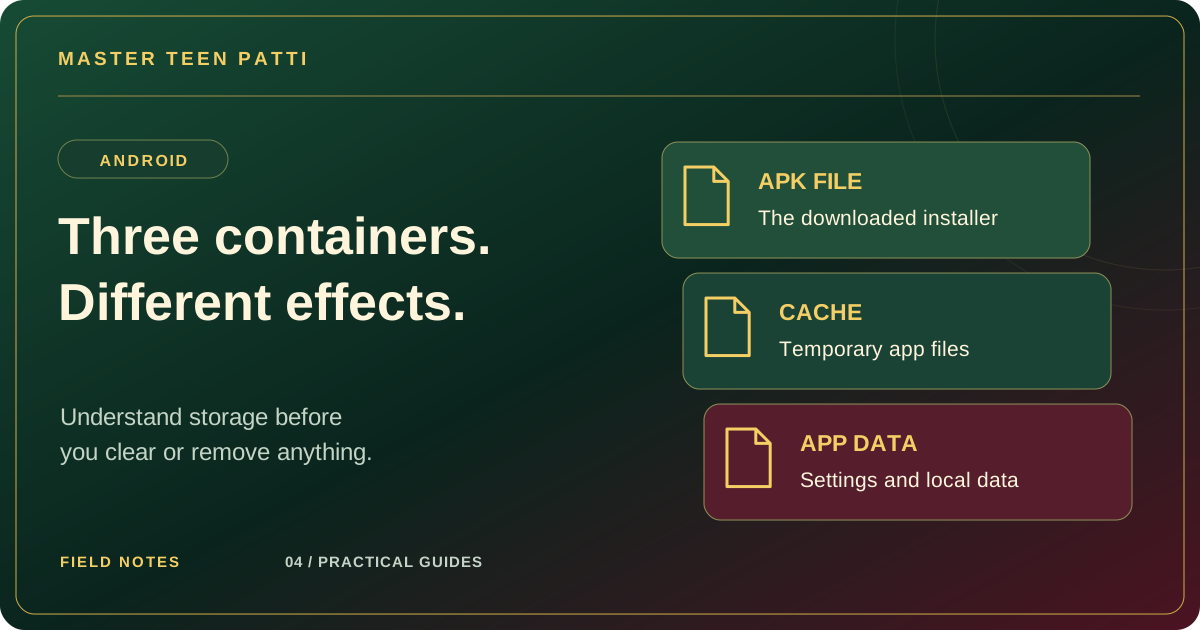
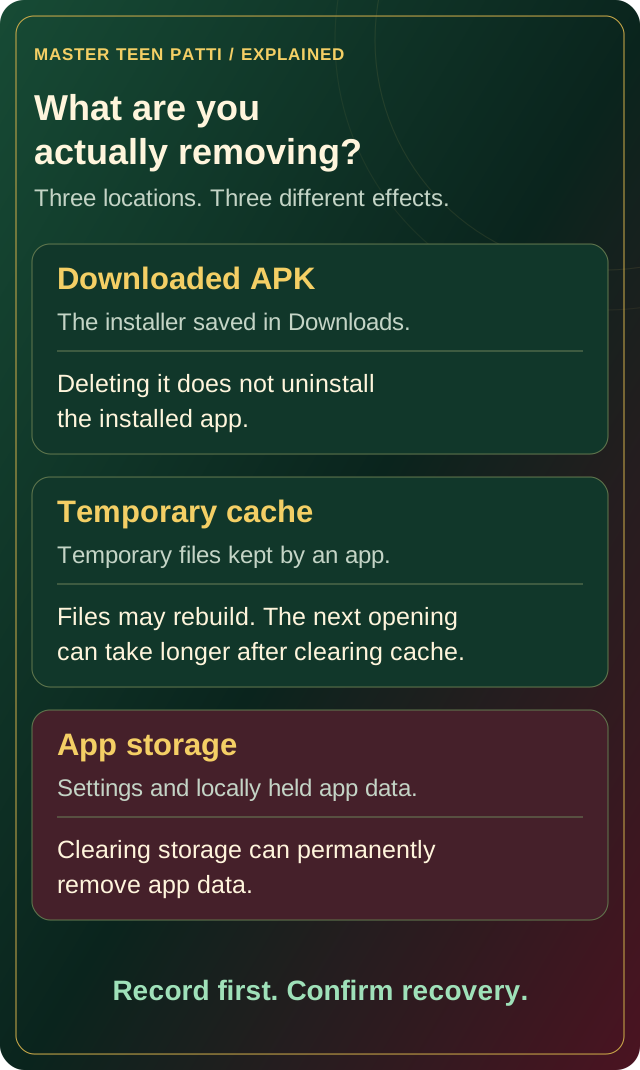
Keep three containers in mind: the APK in browser Downloads, temporary app cache and app storage. Deleting a downloaded APK is not uninstalling the installed app. Clearing cache is not clearing app storage. These distinctions explain the controls; they do not establish this APK’s actual storage layout or recovery behaviour. The website has not performed a runtime storage test. If you cannot identify a location, record it and pause instead of treating uncertainty as a reason to erase it.
Use a classification table before choosing an action
| Item | What it represents | What it does not establish |
|---|---|---|
| Downloaded APK | A saved installation package in a browser or file location. | An account backup or the installed app’s total footprint. |
| App cache | Temporary data associated with an installed app. | A complete map of account information. |
| App storage / data | The installed app’s data, as labelled by the device. | Which details can be restored by the publisher. |
| Device-wide free space | A whole-device capacity reading. | Proof that one app caused a symptom. |
Android Developers describes an APK as the package used to install an app. That is why keeping another copy of the package is not equivalent to preserving your app account. Write the exact device label beside a number instead of combining differently labelled totals.
Inspect the numbers without changing them
Open the device’s own storage overview and read the categories it actually provides. Google’s storage guidance covers reviewing usage, while noting that controls can vary by phone and Android version. This article does not supply a product-specific menu path. Capture the observation privately: date, device, available space, selected app and the labels shown beside its figures.
Do not equate a saved APK’s size with the whole installed footprint. The selected download was 58,114,094 bytes when checked on 13 October 2026; that is a file measurement, not a measured installation-space requirement. Nor is a large app figure, by itself, proof of a fault. If you have no error and no planned change, a dated baseline may be all you need. A screenshot with unrelated apps and private notifications removed can be more useful than an unexplained rounded number.
Follow a read-only inventory before any cleanup
Use this sequence to understand what exists without deleting, resetting or reinstalling anything. Keep one note for the APK and another for the installed app so their evidence does not become mixed.
- Name the question: missing download, low-space message, changing usage or recovery concern.
- Locate the APK record: write its filename, folder, browser status and available size. Do not open unknown copies.
- Read system totals: record device free space and the installed app’s displayed categories.
- Preserve context: note when the issue began and which action preceded it, if known.
- Identify recovery information: confirm what you already know without testing a sign-out or removing access.
- Stop at uncertainty: ask about a specific label or consequence rather than selecting an irreversible control.
If the APK transfer is still unfinished, use the download-stage guide. If the app is installed but does not open, use the separate opening guide; storage inventory alone does not diagnose that symptom.
Understand what a cache check can and cannot answer
Google distinguishes temporary cache from app storage: clearing cache removes temporary data, and the next opening may be slower; clearing storage permanently removes app data. Read those action labels carefully. A cache figure tells you a quantity under the device’s label, not whether those files are faulty. This article does not claim a tested cache-clearing fix for Master Teen Patti.
If a verified developer instruction proposes a cache check for a specific symptom, first keep the baseline, the instruction and the expected observation. Change only the stated item, then compare the same symptom and labels. Do not turn an inconclusive cache check into permission to clear storage. For example, “the cache figure changed but the same message remains” is a useful result; it does not establish that saved account information must be removed. Keeping the outcome narrow prevents one speculative action from becoming a chain of destructive experiments.
Keep device backup and product account recovery separate
Before considering a data-removal action, identify the recovery route you can actually substantiate. Is there a known account identifier? Do you still control the required sign-in method? Has an identified product channel explained what can be restored? Keep secret credentials private; the purpose of this check is to know that a route exists, not to send its details to this website.
Google’s Android backup guidance warns that not every app can back up or restore all settings and data. A phone-level backup indicator therefore does not prove that this game’s account, local settings or other information will return. This website has not verified that mapping. Read the login and recovery-preparation guide if access is already uncertain. Do not sign out, clear storage or uninstall merely to find out whether recovery works.
Match any proposed deletion to one identified object
If you only want to review a downloaded duplicate, stay with the identified file and its browser record. Chrome’s Android download guidance treats downloaded files as items managed in Downloads. Confirm the exact candidate and preserve any inspection note you need before deciding whether to remove an unneeded copy. Do not use its presence or removal as a test of installed-app health.
If a proposed action instead concerns app storage, treat it as a different decision with a recovery requirement. Avoid bulk cleaners or unlabelled deletion that prevents you from knowing what changed. An APK kept in a folder cannot guarantee recovery afterwards. If someone proposes replacing the app as part of cleanup, read the update and package-compatibility guide first. File replacement is not simply another way to reduce a cache number.
Write a report that preserves the distinction
A useful report states the question, the exact location and the displayed label. For example: “I inspected the installed app’s storage categories on this date; no data-removal action was taken.” Add the device model, Android version, app version if available, the figures with their units and any exact low-space or opening message. Keep an APK filename and byte count on a separate line from installed-app totals.
The support preparation checklist can organise that record. Share only the minimum necessary information through a verified product channel; this website does not inspect personal storage or recover accounts. You can stop after documenting an unclear label. A successful review does not have to end with deleting something: knowing which object a proposed action would affect is already a practical result.
Frequently asked questions
Is deleting the downloaded APK the same as uninstalling Master Teen Patti?
No. The downloaded package and the installed application are different objects. Identify the file before managing it; keeping an APK also does not make it an account backup.
Does clearing cache also clear all app storage?
They are different Android actions. Cache concerns temporary data; clearing storage permanently removes app data. Read the exact control and do not substitute one action for the other.
Will an Android backup restore everything after I remove app data?
That has not been verified for this APK. Google notes that backup and restoration support varies by app. Confirm the actual product recovery process before considering a data-removal action.
Sources & scope
Google: Free up storage on Android supports storage-category and cache/data distinctions. Google: Back up or restore Android data supports the limit on app-specific restoration. Chrome for Android: Download a file supports managing downloaded files separately. Android application fundamentals explains the APK installation package. The inventory and decision examples are editorial aids. None of these sources establishes this APK’s actual stored data, cleanup results, account recovery or installed footprint.
Published 26 October 2026. Updated 26 October 2026. Product claims not supported by file inspection are excluded. Read the editorial policy.