

Find the stage where progress stopped
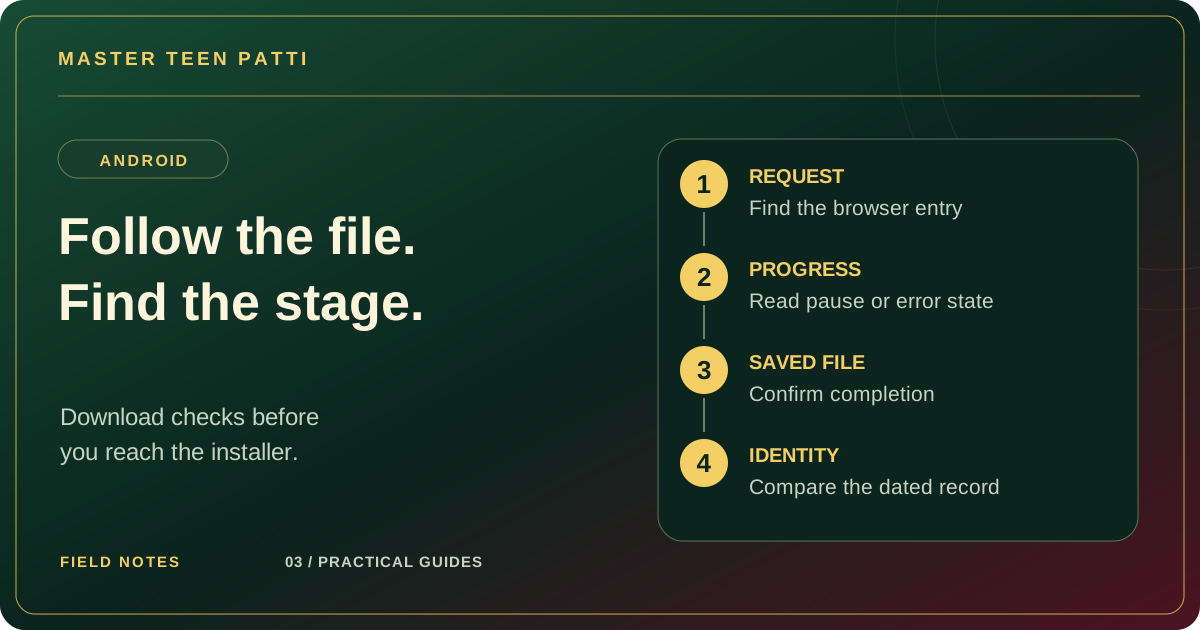
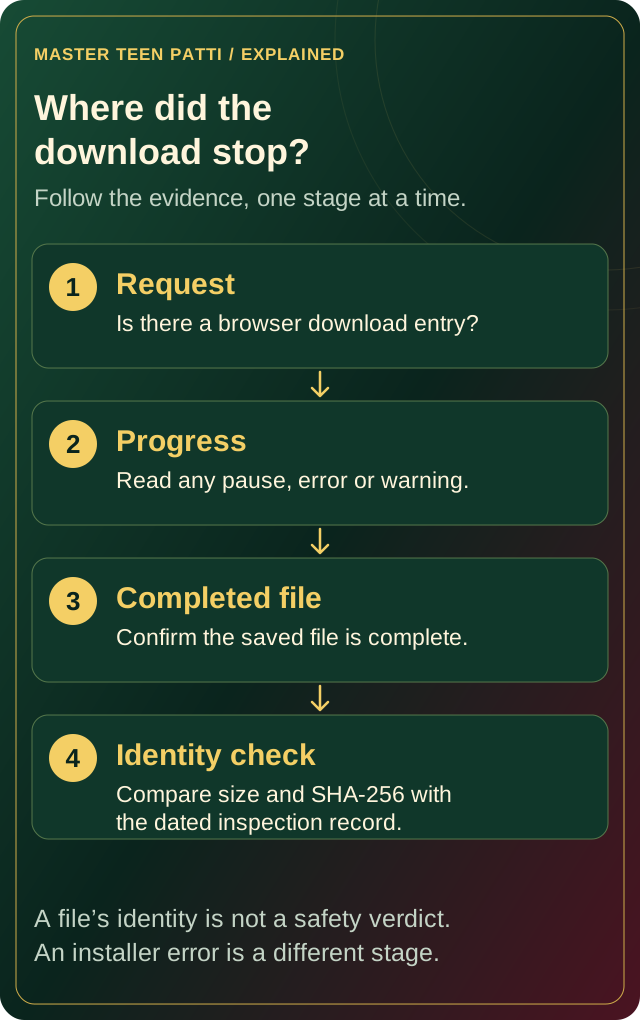
A Master Teen Patti download that does not start is a browser-and-file question first. Tapping a download button requests a file; it does not prove that the browser accepted the request or saved the complete APK. Keep four stages separate: request, download progress, complete saved file and identity check. Installation comes afterwards. Repeating the installer steps before a file exists cannot tell you what happened to the transfer.
| Stage | Evidence to look for | What remains unconfirmed |
|---|---|---|
| Request | A button was used and the destination was requested. | Whether the browser started saving. |
| Progress | A browser record shows an active or paused transfer. | Whether the whole file has arrived. |
| Complete saved file | The browser reports completion and the local file is present. | Whether its bytes match the inspected record. |
| Identity check | Exact size and full SHA-256 are compared. | Publisher identity, installation and runtime behaviour. |
Use the selected address and its dated record
The source selected for this website is the externally hosted TeenPattiMaster-266-0813.apk file. The file checked on 13 October 2026 was 58,114,094 bytes, displayed as 58.1 MB. These values describe that inspection; this article does not assert a fresh download, a current host response or the newest publisher release.
Start from the file information page so you can keep the source and record together. The routing page requests the selected file automatically once and provides manual retry. Its status text describes the request made by the page, not a receipt from your phone’s storage. A countdown, notification or familiar filename is not a substitute for checking what the browser actually saved.
Inspect the browser record before tapping again
Open the download history of the browser that handled the link. If you deliberately moved from an in-app browser to Chrome, check Chrome rather than assuming both share one list. Google’s Chrome for Android download guidance identifies Downloads as the place to inspect and manage transfers. Its documented route is the More menu, then Downloads; toolbar placement can differ.
Record the status next to the relevant filename and the time of the attempt. An active transfer, a paused item, a failed item and no matching item are four different observations. Preserve the exact wording before changing anything. If you cannot find the file, check the device’s file view as well, without opening unrelated personal folders or sharing a screenshot of all your downloads.
Make one deliberate retry and observe the result
If an item is already transferring, watch that record instead of creating more requests. If it is paused, use the browser’s available controls only after reading any message attached to it. If there is no matching item, return to the routing page and make one deliberate manual attempt. Then inspect the record again. This does not guarantee that the source will respond, but it gives you a clear before-and-after observation.
Keep a brief note such as “one tap at 14:20; no new browser entry” or “retry created a paused entry.” Do not infer success from the fact that a button changed colour. Repeated taps make it harder to connect a filename with a particular attempt and can leave you comparing the wrong copy later.
Separate connection trouble from a saving problem
Check whether a familiar, unrelated page loads on the same connection. That is a useful comparison, not proof that the APK host is reachable. If appropriate for your device and data plan, compare one attempt on your usual connection with one trusted alternative. Change one condition at a time and record the difference. Do not use an unfamiliar replacement APK merely because a different site loads.
Google’s download-error guide distinguishes transfer errors from file access and saving errors. Some examples and menu instructions there concern computers, so use your actual phone’s message rather than borrowing a desktop diagnosis. If the message concerns available space, inspect storage totals before deleting anything. The storage and cache guide explains which locations you are looking at.
Identify duplicates and incomplete files without guessing
Two similarly named files are not automatically two complete, identical downloads. For each candidate, record its filename, location, date, browser status and available size information. A filename suffix can distinguish copies without explaining their contents. Likewise, a file manager’s rounded size may not be precise enough to compare with the recorded byte count. Do not rename a partial file to make it look finished or assume that the most recently listed item must be the right one.
Keep the candidate you are investigating distinct from any earlier copy. If a transfer remains unfinished, return to the browser record; do not move on to installation. Before removing an obvious duplicate, confirm which entry and physical file you selected. If you need the failed record for a support question, preserve its non-sensitive details first. Deletion is not a diagnostic test of whether another copy is valid.
Check identity only after the complete file is saved
When the browser reports completion and you can locate the saved file, compare its exact size with 58,114,094 bytes. Then use a trusted tool to calculate its complete SHA-256 and compare all 64 characters with the inspection record: 4ac91885944f1548d6754aa342cc7ffa5fea197bd3dfb9119e0ba76f56d7872e. Read the file-identity guide for the limits of that comparison.
A mismatch means the saved bytes do not match that record; it does not tell you why. Stop treating the file as the inspected build. If the browser displays a dangerous-download warning, preserve the wording and stop while checking the source. Google explains that Chrome blocks some downloads for security reasons. Do not turn off browser protections or Play Protect, use a modified package, or treat a matching checksum as permission to disregard a warning.
Hand over a precise observation, then choose the next guide
For an unresolved download, prepare the browser name, device model, issue time, requested address, visible status and any exact error. Add whether a saved file exists and which size you could inspect. Keep account numbers, OTPs and private notifications out of the report. The support preparation page helps organise those facts; it does not receive an uploaded file or create a product ticket.
Once a complete file is identified, an Android rejection belongs in the installation guide. If installation succeeds but the app will not open, use opening and loading checks. For an existing installation, read the update-compatibility guide before changing files. A successful transfer answers the download question only; it is not evidence about those later stages.
Frequently asked questions
The page says the download was requested. Is the APK saved?
Not necessarily. Check the browser’s download record and locate the complete local file. The page cannot use its request message to confirm that your device saved every byte.
Should I press Download repeatedly when nothing seems to happen?
Inspect existing records first. If there is no active attempt, make one deliberate retry and note what changes. Multiple requests can leave confusing duplicate or unfinished copies.
Can I install a smaller file with the same name?
Do not treat it as the inspected file. First establish completion and compare exact size and SHA-256. The recorded 13 October 2026 file is 58,114,094 bytes.
Sources & scope
Chrome for Android: Download a file supports download-history and transfer-control facts. Chrome: Fix file download errors supplies the general error distinctions; its computer-specific instructions are not presented as phone controls. Chrome: Blocked downloads supports the security-warning explanation. APK values come from this site’s 13 October 2026 inspection record. The four-stage workflow is an editorial aid, not a fresh host-availability check or a tested Android installation.
Published 26 October 2026. Updated 26 October 2026. Product claims not supported by file inspection are excluded. Read the editorial policy.